# How to use a element?
### What are Elements?
Elements include shapes, SVGs, icons, illustrations, images, and badges for all app-specific categories.
### Add elements to design
#### SVG elements
Enhance your screenshots by adding scalable SVG elements
1. Go to **Elements** under the left main menu.
2. Choose **Elements** under the top sub-menu.
3. Select the screenshot where you want to add the element.
4. Now choose any **shape**, change its size, and color.
#### Image elements
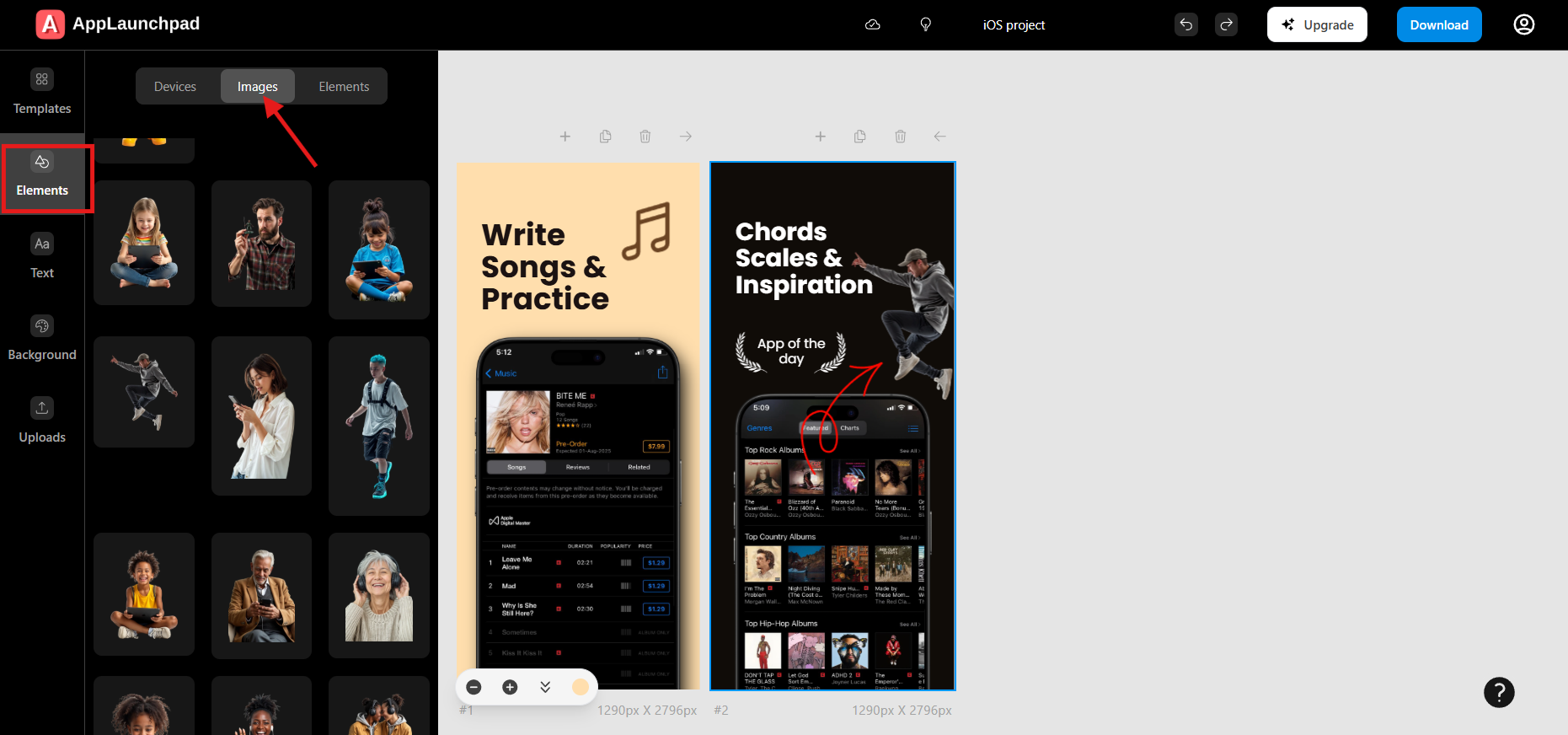
Add images to your screenshots to enhance visual appeal
1. Go to **Elements** under the left main menu.
2. Choose **Images** under the top sub-menu.
3. Select the screenshot where you want to add the element.
4. Now choose any image element from the list, and it will get added to the screenshot.