# How to add a device

### Add a device to your screenshot

<figure><img src="https://3559485764-files.gitbook.io/~/files/v0/b/gitbook-x-prod.appspot.com/o/spaces%2FeV2PJFlO5LImjdD5i7oV%2Fuploads%2FTi6M7GykJEHXbf2iKhfH%2Fadd%20device%20to%20your%20screenshot.png?alt=media&#x26;token=5045c693-31d0-4f6b-94d3-bf69c417ceff" alt=""><figcaption></figcaption></figure>

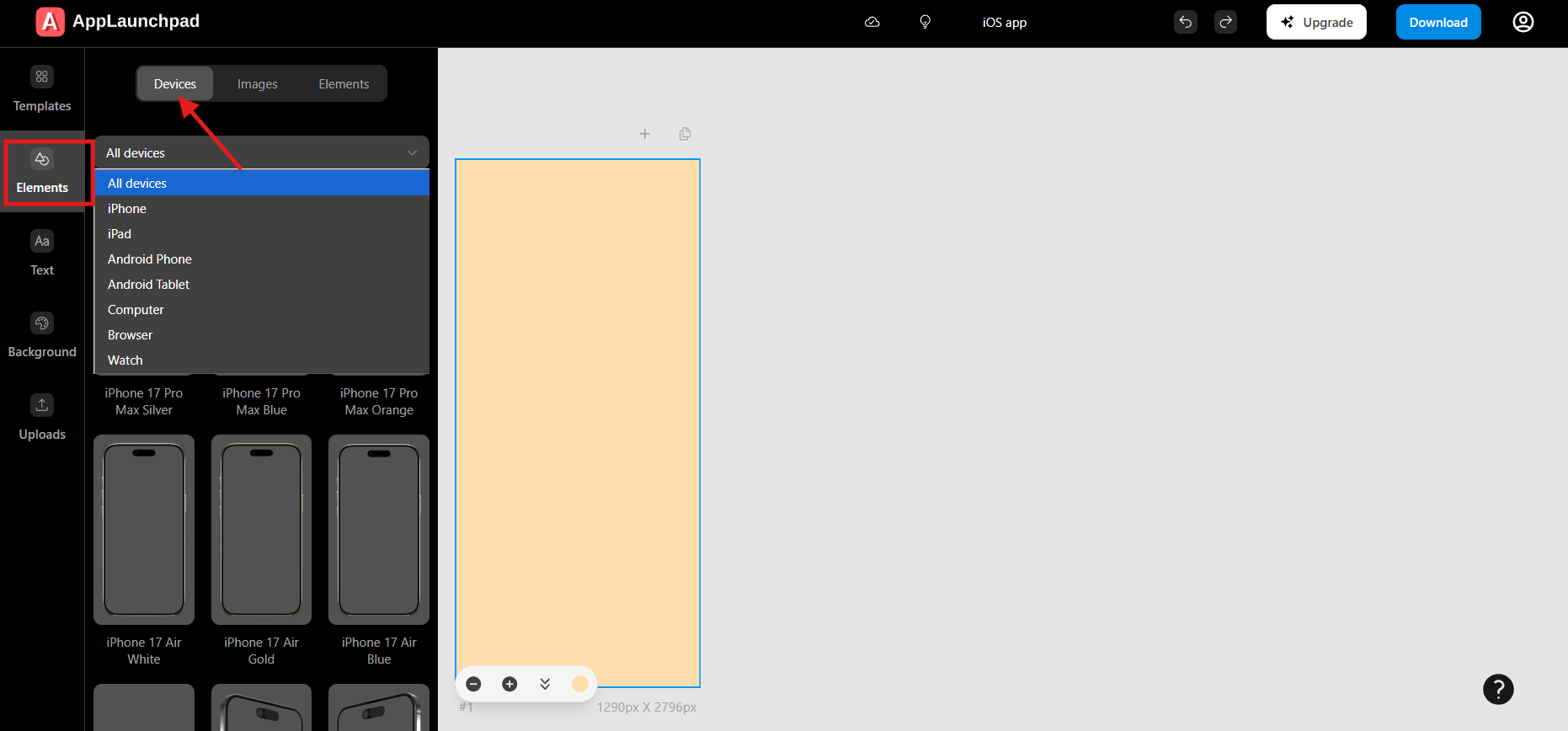
Insert a device frame to showcase your screenshot professionally.

1. Click on the **Elements** tab on the left menu.
2. Select **Devices** from the top menu options.
3. Click on the screenshot where you want to add the device.
4. Next, select your preferred device from the list, or use the dropdown to filter and find a specific device.

<figure><img src="https://3559485764-files.gitbook.io/~/files/v0/b/gitbook-x-prod.appspot.com/o/spaces%2FeV2PJFlO5LImjdD5i7oV%2Fuploads%2F6vCZvraZZgQ2StaWWygh%2Fdevice%20added%20to%20screenshot.png?alt=media&#x26;token=86f413fa-7bd9-4ece-addf-72499a31ada5" alt=""><figcaption></figcaption></figure>

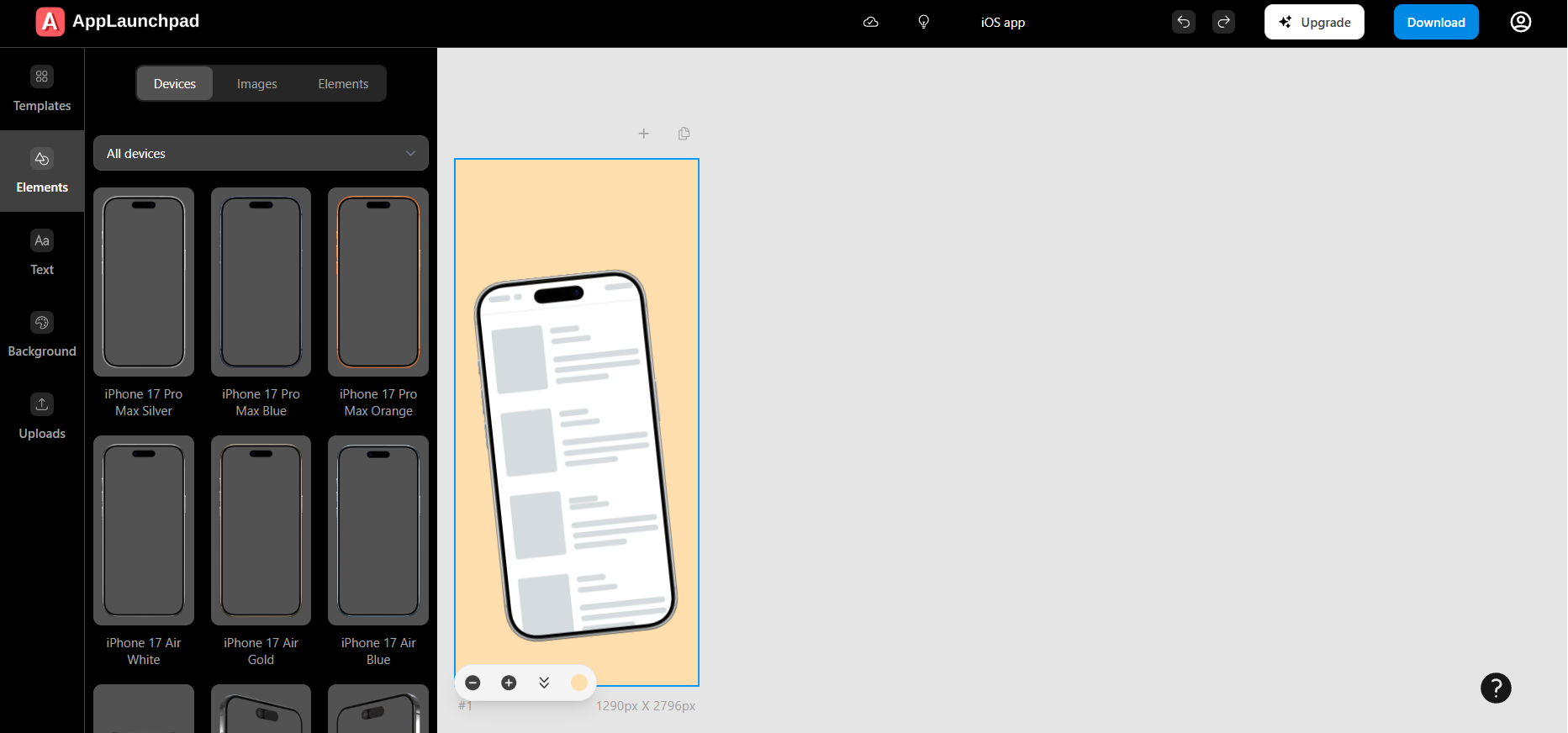
5. A new device element will be added to your screenshot.