# How to create a new design?

There are multiple ways to create a new design.&#x20;

### Using pre-designed Templates

Use pre-designed templates to create professional designs instantly.

<figure><img src="https://3559485764-files.gitbook.io/~/files/v0/b/gitbook-x-prod.appspot.com/o/spaces%2FeV2PJFlO5LImjdD5i7oV%2Fuploads%2FKibEaPJa9DRtqh4w1H6F%2Fuse%20pre-designed%20templates.png?alt=media&#x26;token=ac989684-5bcb-4d7b-82dd-14622fa10abe" alt=""><figcaption></figcaption></figure>

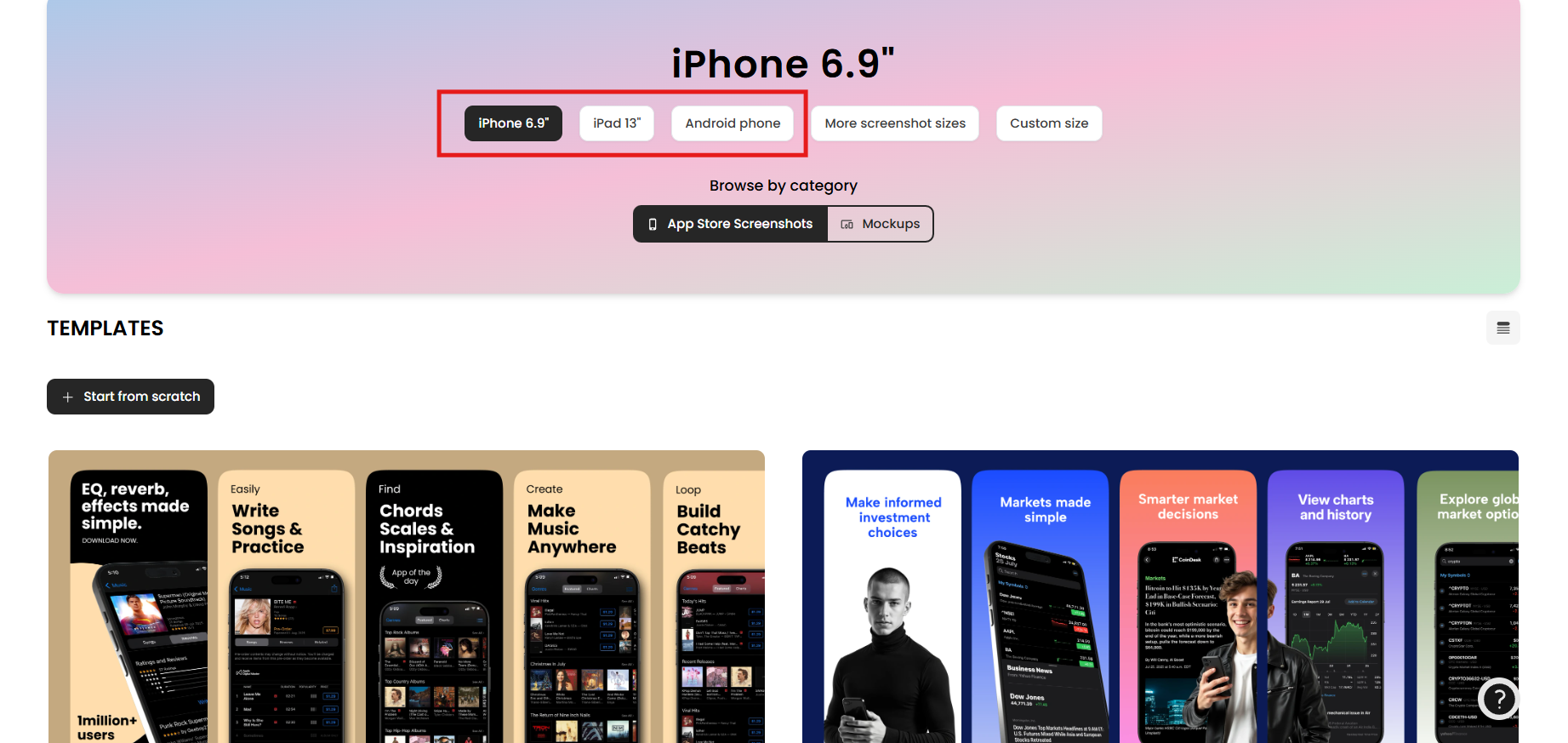
1. Choose a device type from **iPhone 6.9**, **iPad 13**, or **Android** phone.

<figure><img src="https://3559485764-files.gitbook.io/~/files/v0/b/gitbook-x-prod.appspot.com/o/spaces%2FeV2PJFlO5LImjdD5i7oV%2Fuploads%2FYfCsGoqZFsx9NqlADxfX%2Fpre-designed%20templates.png?alt=media&#x26;token=09b26d52-f69f-4702-aa3f-98048d93a560" alt=""><figcaption></figcaption></figure>

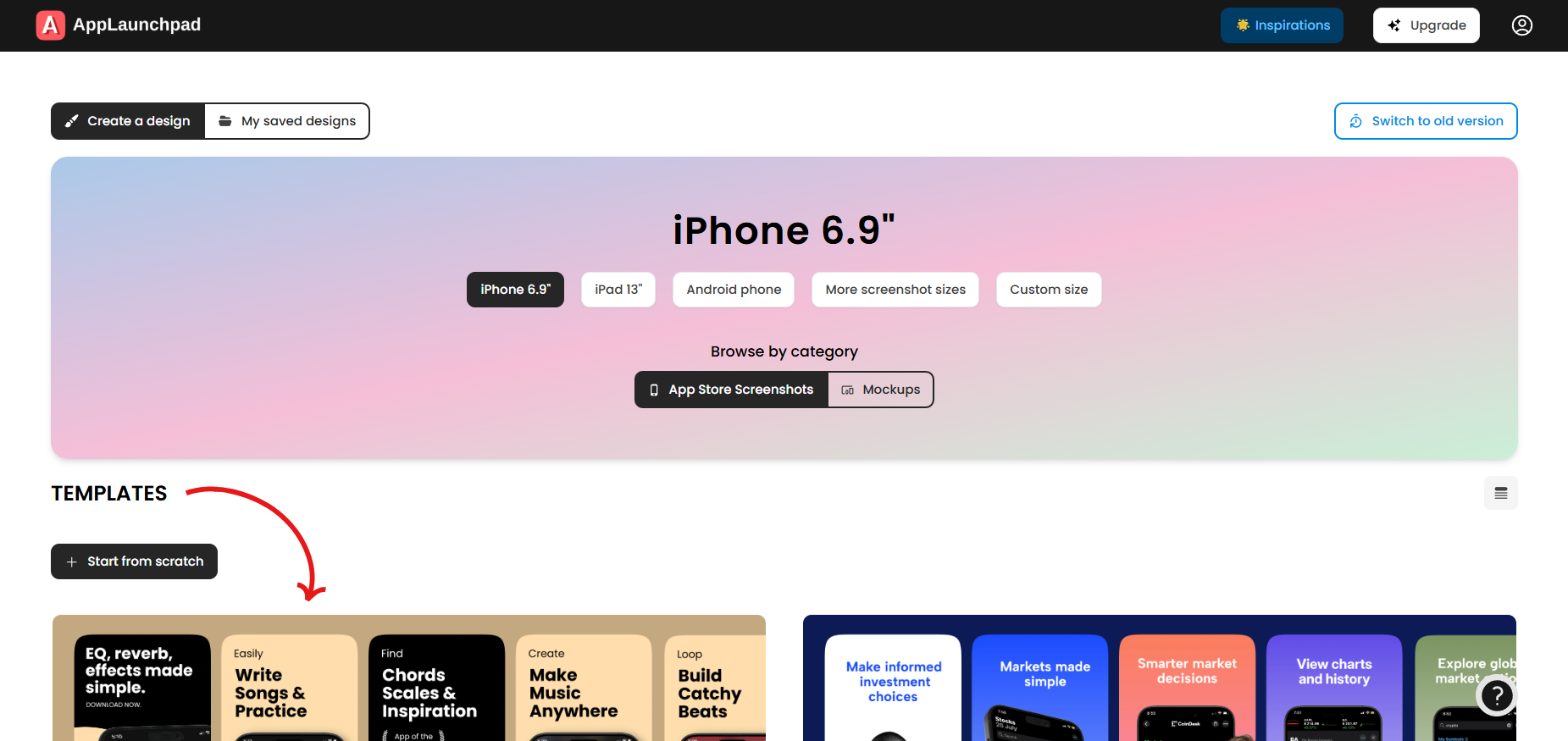
2. Select a template of your choice from the pre-designed templates.
3. Clicking a template generates a new design using the selected template and opens it in the dashboard.

### Using More devices

### Choose device for iOS

<figure><img src="https://3559485764-files.gitbook.io/~/files/v0/b/gitbook-x-prod.appspot.com/o/spaces%2FeV2PJFlO5LImjdD5i7oV%2Fuploads%2FT16YRusX2kDfKMcJIxw6%2Fapp%20store%20screenshots.png?alt=media&#x26;token=a240b162-cc00-4d5d-84bc-427d70caa96c" alt=""><figcaption></figcaption></figure>

Choose a device from AppLaunchpad’s extensive device list.

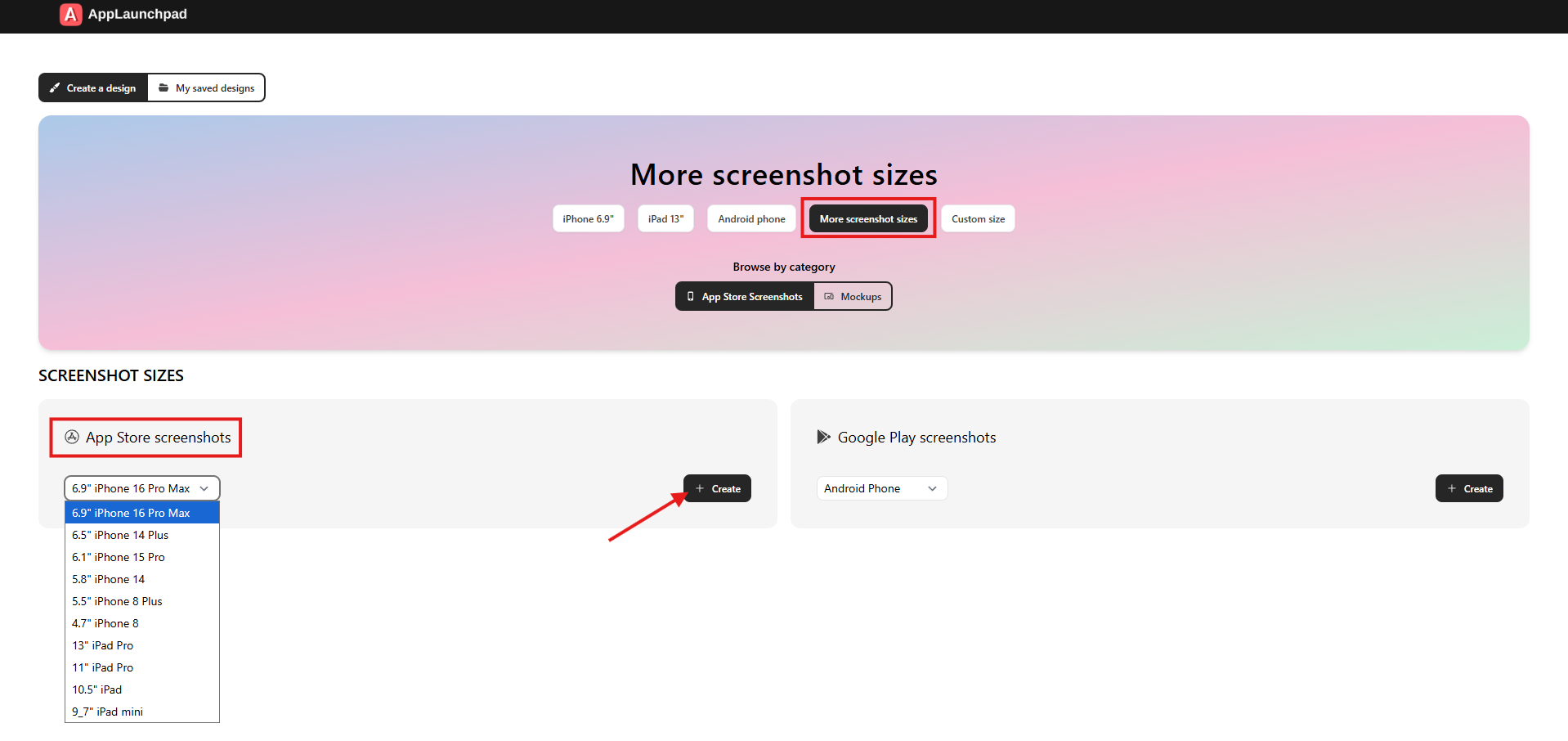
1. Click on **More screenshot sizes**.
2. Next, click on **App Store screenshots**.
3. Choose a device from the **App Store screenshots** drop-down list.
4. Click on the **Create** button to create a new design in the dashboard.

#### Choose Devices for Android

<figure><img src="https://3559485764-files.gitbook.io/~/files/v0/b/gitbook-x-prod.appspot.com/o/spaces%2FeV2PJFlO5LImjdD5i7oV%2Fuploads%2FxxtDRJKbNLK6CTBYWNqm%2Fgoogle%20play%20screenshots.png?alt=media&#x26;token=81fb11aa-b537-487e-b3dc-cc66f7eeda42" alt=""><figcaption></figcaption></figure>

Select Android devices to create screenshots for various screen sizes.

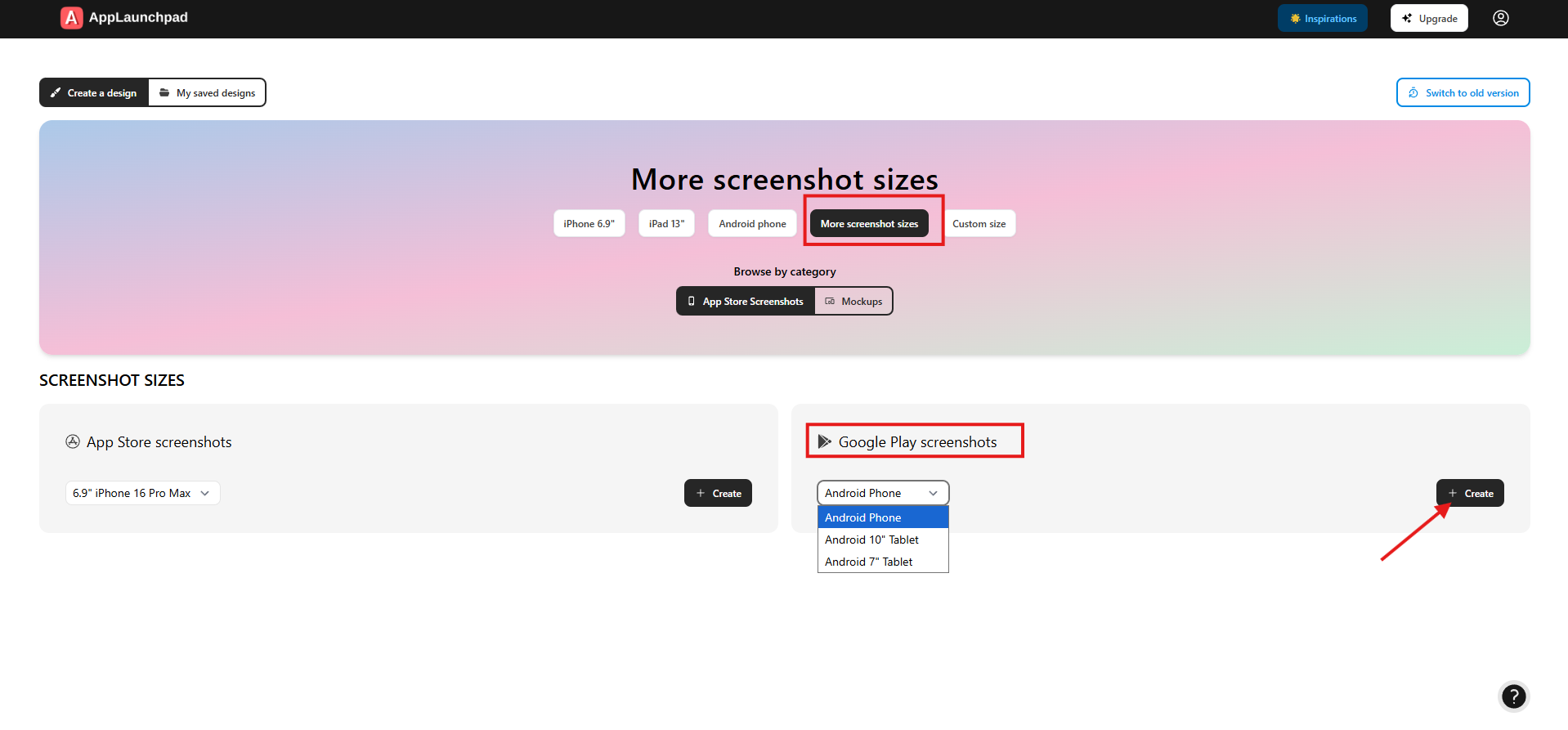
1. Click on **Google Play screenshots**.
2. Select an Android device from the **Google Play screenshots** drop-down list.
3. Click on the **Create** button to create a new design in the dashboard.

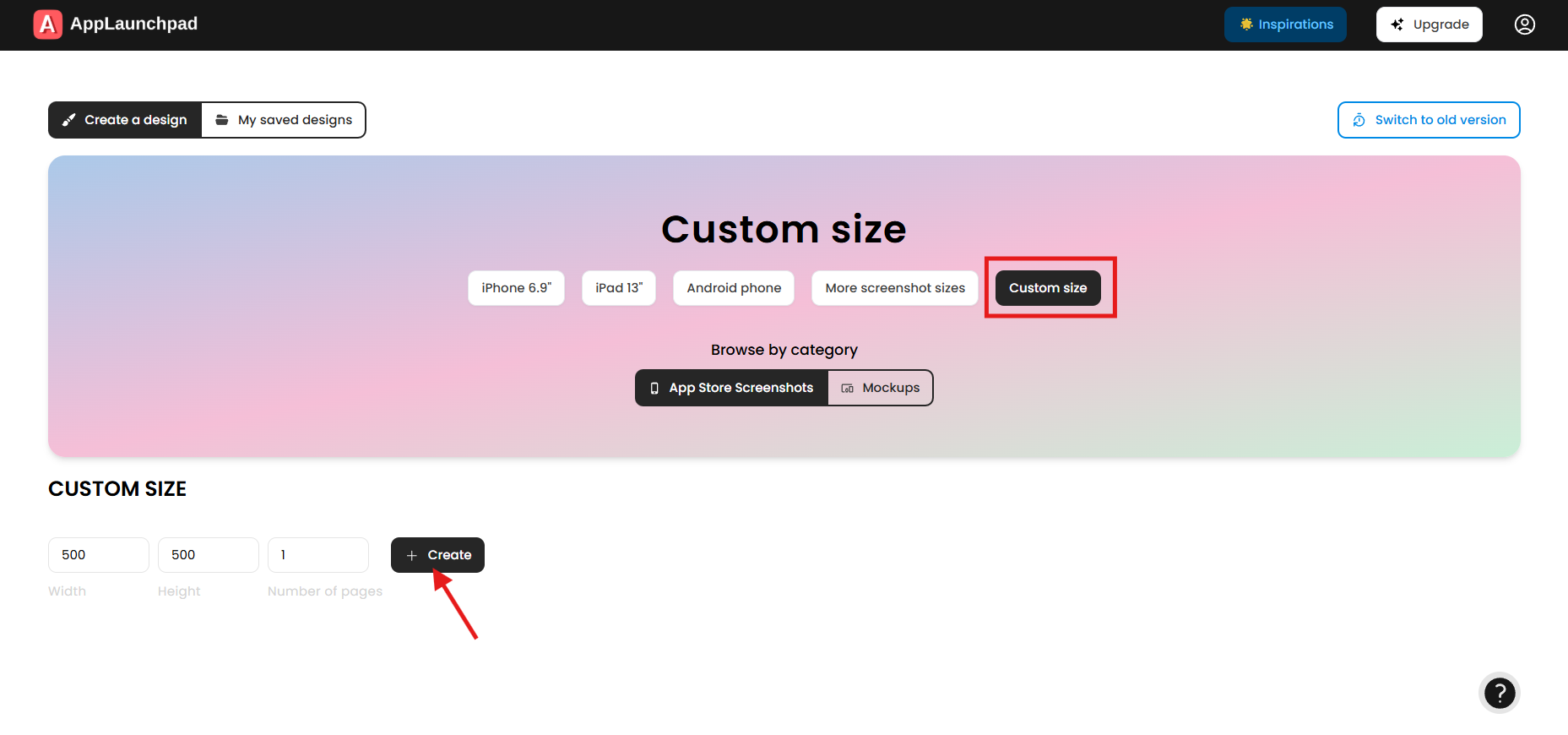
### Use a custom size

<figure><img src="https://3559485764-files.gitbook.io/~/files/v0/b/gitbook-x-prod.appspot.com/o/spaces%2FeV2PJFlO5LImjdD5i7oV%2Fuploads%2FDyZ8kGRzhA8xMPp2gX1y%2Fuse%20a%20custom%20size.png?alt=media&#x26;token=6da5044a-faeb-4d80-bfa6-371af845f3c0" alt=""><figcaption></figcaption></figure>

Set a custom size to create screenshots tailored to your needs.

1. Click on **Custom size**.
2. Define the design's width and height.
3. Click on **Create** to create a design of any size you require.